How AI Is Integrated Into Modern Software
Discover my practical tips for using AI in modern software efficiently. Learn how small, clear prompts and careful testing can improve your digital workflow and save time.

Key Points About AI in Modern Software
AI automates repetitive tasks, saving significant time.
Intelligent suggestions in software improve accuracy and efficiency.
AI integration enhances workflow in writing, design, project management, and data analysis.
Using AI properly requires understanding settings, not blind acceptance.
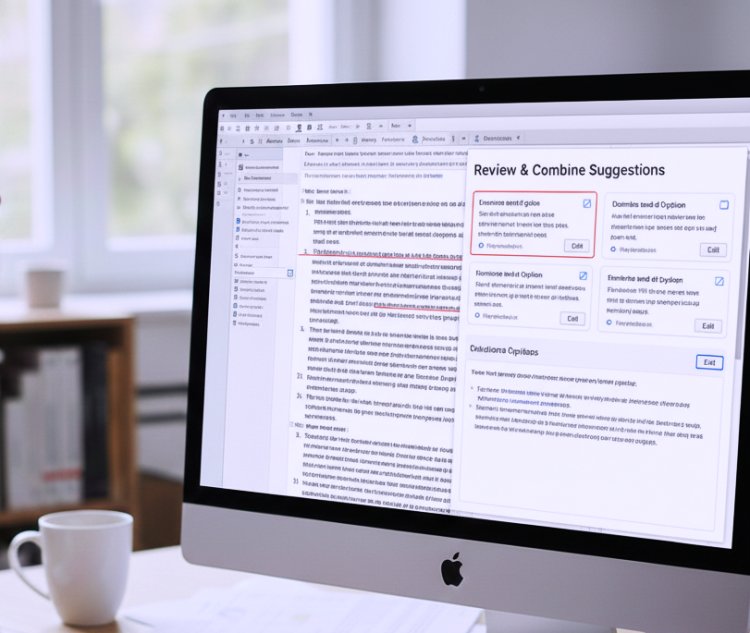
Combining human judgment with AI output produces the best results.

Why I Decided to Explore AI in Software
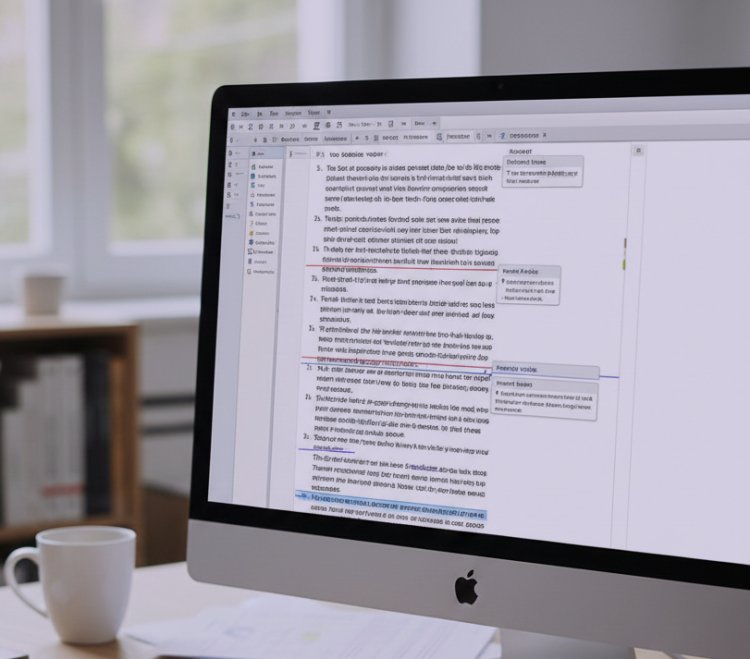
I still remember the first time I opened Microsoft Word with AI powered editing suggestions. I was working on a long project report and kept seeing suggestions popping up grammar corrections, style improvements, and even alternative word choices. At first, I ignored them. I thought, “I’ve been writing professionally for years I don’t need AI to correct me.”
But after a few hours of manually fixing mistakes I hadn’t even noticed, I realized that AI wasn’t trying to replace me it was helping me work smarter. That’s when I decided to explore how AI is integrated into modern software and figure out how to use it effectively.
Practical Examples From My Experience
1. Document Editing Tools (Microsoft Word, Google Docs)
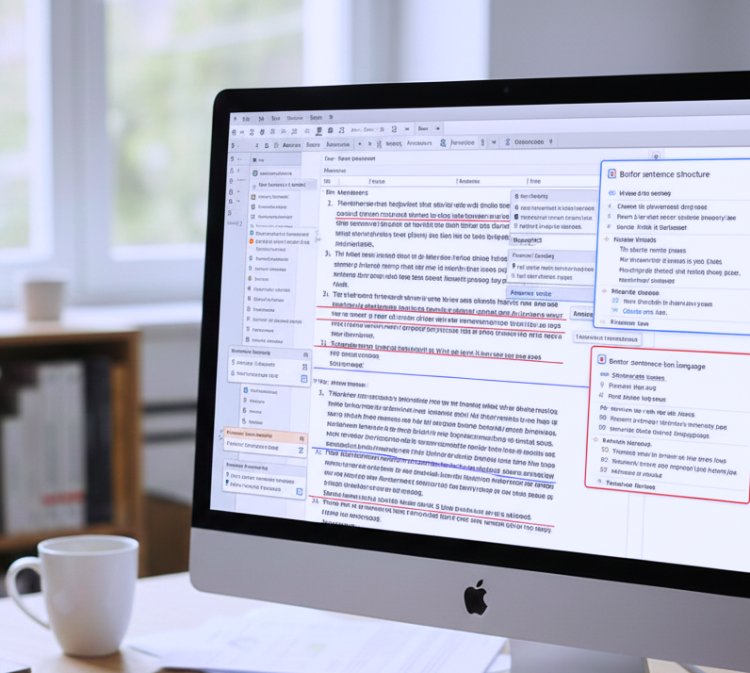
I used to spend hours proofreading reports. After enabling AI powered suggestions in Word:
Grammar errors were automatically highlighted.
Word suggested better sentence structures.
Style recommendations helped me keep a consistent tone throughout long documents.
Lesson Learned: Initially, I accepted every suggestion blindly. This led to awkward phrasing. Later, I learned to review suggestions critically, which significantly improved my writing while saving time.
2. Design Software (Canva, Adobe Photoshop)
I love creating visuals for my projects, but designing from scratch always felt time consuming. AI features helped in:
Automatic background removal in images.
Smart color palettes based on content.
Layout suggestions that followed design principles.
Example: I once created a presentation in Canva in 20 minutes that would have taken me over an hour manually.
3. Project Management Tools (Trello, Asana, Monday.com)
Before using AI powered project management:
I manually prioritized tasks and deadlines.
Team collaboration sometimes led to delays.
After using AI features:
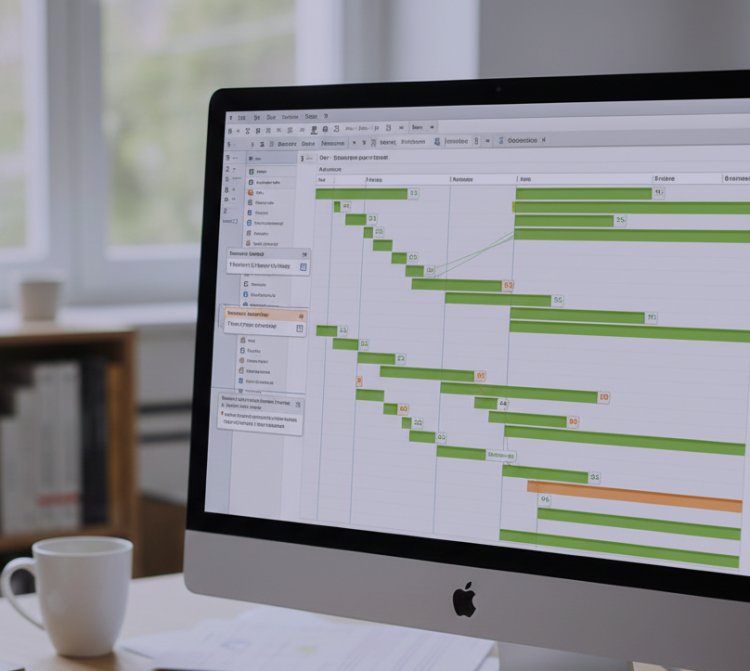
The software suggested task order based on deadlines and dependencies.
Predictive analytics flagged potential bottlenecks before they occurred.
Automated reminders kept everyone on track.
Lesson Learned: I initially overrode AI suggestions thinking my own task order was better but after trusting the AI, team efficiency improved dramatically.
4. Data Analysis Software (Excel, Power BI, Tableau)
AI features helped me with:
Automated insights from large datasets.
Forecasting trends and patterns.
Suggesting charts and visualizations that communicated insights clearly.
Personal Example: When analyzing sales trends for a small project, AI suggested a chart type I wouldn’t have thought of, which made the data easier to present to stakeholders.
What I Got Wrong the First Time
One of the biggest mistakes I made was ignoring AI suggestions out of fear or mistrust.
Problem: I thought AI would take creative control or replace human decision making.
Consequence: I wasted hours doing repetitive tasks manually.
How I Fixed It: I started using AI as a partner, not a replacement. I reviewed suggestions, adjusted them when needed, and combined them with my judgment. This approach saved me significant time while maintaining quality.
Step by Step Guide to Using AI in Software
Step 1: Enable AI Features
Most software has AI suggestions turned off by default. Check settings and enable them. For example:
Word: Go to “Editor” > turn on spelling, grammar, and style suggestions.
Trello: Turn on task priority AI in settings.
Canva: Enable design suggestions under “Magic Recommendations.”
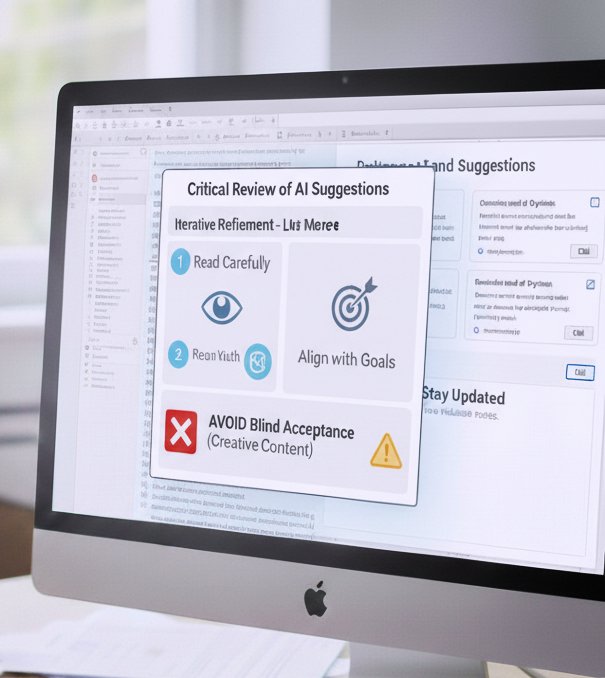
Step 2: Understand AI Recommendations
Read suggestions carefully.
Determine which align with your project goals.
Avoid blindly accepting suggestions, especially for creative content.
Step 3: Adjust AI Behavior
Modify AI strictness (e.g., in Word, set grammar and style rules).
In design software, adjust layout and color preferences.
In project management tools, set task priority rules.
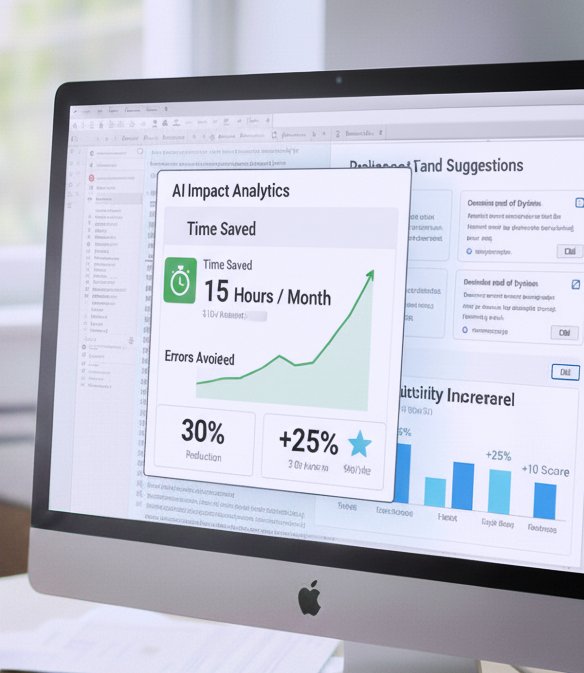
Step 4: Track Results
Keep notes on time saved and errors avoided.
Track improvements in productivity and project quality.
Step 5: Iterate and Learn
AI learns from repeated actions.
Adjust settings periodically for better results.
Use AI tutorials or forums to explore advanced features.
Tip From My Experience
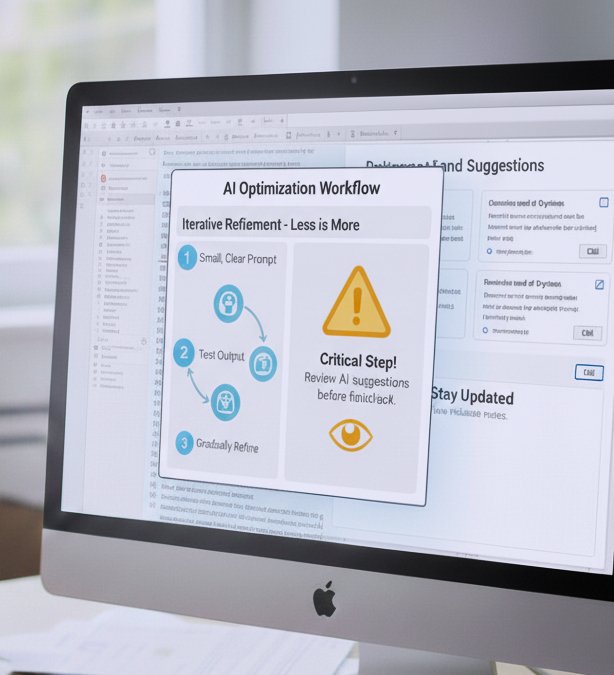
When using AI in modern software, I learned that less is often more. Don’t overload the tool with too many instructions at once. Start with small, clear prompts or settings, test the output, and then gradually refine. This approach saved me countless hours of rework and helped me understand how the AI “thinks” in the context of my projects.
Also, always doublecheck the AI suggestions before finalizing any important work. AI can speed things up, but human judgment ensures quality.
Care Table
|
Software |
AI Feature |
Usage Frequency |
Notes |
|
Word |
Editor suggestions |
Daily |
Review carefully for tone and accuracy |
|
Canva |
Design suggestions |
Weekly |
Adjust layouts manually for creativity |
|
Trello |
Task prioritization |
Daily |
Override only if human insight needed |
|
Power BI |
Automated insights |
Bi-weekly |
Verify AI charts with original data |
Advanced Tips for Using AI in Workflow
Leverage AI Templates: Many platforms offer AI created templates. I used them to accelerate design and reporting tasks.
Use AI for Predictive Planning: In project management, AI predicts risks pay attention to these forecasts.
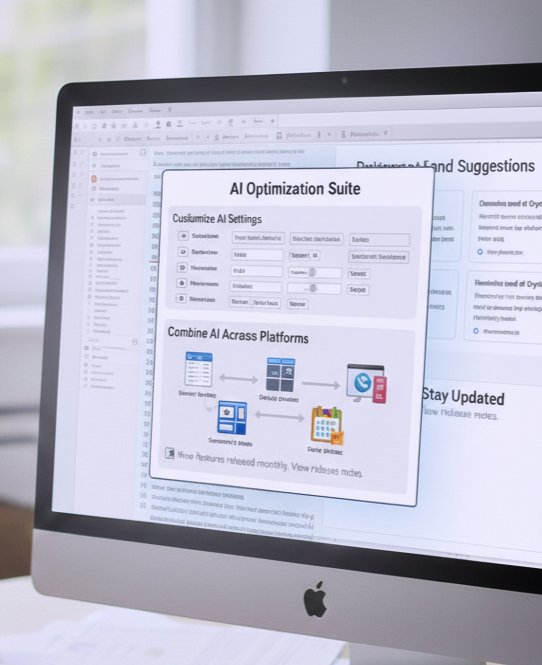
Experiment With AI Settings: Don’t stick with defaults; customize AI to match your workflow.
Combine AI Across Platforms: Export AI processed designs, charts, or reports into other tools to streamline work.
Stay Updated: AI tools are updated frequently. Check release notes for new efficiency features.
In Summary
If I could go back, I would tell myself:
“Stop ignoring AI features. Learn them, experiment with them, and let them assist you instead of replacing your decisions.”
Understanding AI in software wasn’t about replacing me it was about multiplying my efficiency. It saved hours of tedious work, helped me focus on creativity, and improved the quality of my projects.

Frequently Asked Questions About AI in Modern Software
1. What exactly does AI do in modern software?
AI helps automate repetitive tasks, offers smart suggestions, predicts outcomes, and improves efficiency in tools like Word, Excel, Canva, or project management platforms.
2. Do I need to be a tech expert to use AI features?
Not at all. Most AI features are beginner friendly. You can enable them in settings and use them without coding knowledge.
3. Can AI replace my work completely?
No. AI handles routine or data heavy tasks, but human judgment is crucial for creativity, decision making, and strategy.
4. Is AI always accurate?
AI is helpful but not perfect. It can make errors, especially in context heavy or creative tasks, so always review its suggestions carefully.
5. Will using AI slow down my computer?
Only if your hardware is outdated. Modern systems handle AI features efficiently, but older devices may experience slight delays.
6. How can I get the most out of AI in software?
Use AI as a partner, not a replacement. Enable suggestions, adjust settings, review outputs critically, and combine AI assistance with your expertise for the best results.
What's Your Reaction?