How to Improve Computer Skills for Everyday Use
Learn practical ways to improve your computer skills for everyday use. Discover step by step tips, real life examples, and expert advice to boost productivity, confidence, and digital efficiency.

Key Points to Improve Computer Skills for Everyday Use
• Why computer skills are crucial in today’s life
• Assessing your current abilities and setting goals
• Basic tools and software everyone should know
• Step by step approach to improving practical skills
• Real life examples of how I applied what I learned
• Mistakes I made and lessons learned
• Pro tips, shortcuts, and daily exercises
• Maintenance strategies to retain skills
• FAQs for beginners
The Challenge I Faced With Everyday Computer Tasks
I’ll be honest when I first started using computers regularly, I felt lost. Sending emails, formatting documents, or even organizing files seemed overwhelming. I wasted hours on tasks that could have taken minutes if I knew the right tools and techniques.
I decided to take a structured approach to learning. Over several months, I developed a system to build my computer skills from scratch and improve them for everyday use. This blog shares exactly what I did, including mistakes I made, lessons learned, and practical tips you can apply immediately.
By the end of this guide, you’ll have a clear roadmap to improve your computer skills efficiently and confidently.
Why Computer Skills Matter
Computers aren’t just for “tech jobs” anymore they are essential for:
• Work productivity (emails, documents, presentations)
• Managing personal finances
• Organizing files and photos
• Communication through messaging apps and video calls
• Learning online and accessing resources
Before I improved my skills, I struggled with basic tasks that slowed down my daily workflow. After learning a few key skills, I became more productive, organized, and confident.
Tools I Used
Computer / Laptop:
Any Windows or Mac device works. The important part is consistent practice.
Software & Apps:
• Microsoft Office (Word, Excel, PowerPoint)
• Google Workspace (Docs, Sheets, Drive)
• Canva (basic design)
• Notion or Trello (task organization)
Learning Resources:
• YouTube tutorials
• Free courses on Coursera / Udemy
• Blogs and forums for troubleshooting

Practice Materials:
• Real documents, presentations, and spreadsheets
• Emails and daily tasks that require computer work
Step 1: Assess Your Current Skill Level
Before improving, I made a list of what I could and couldn’t do.
What I could do:
• Basic typing and mouse use
• Open and close software
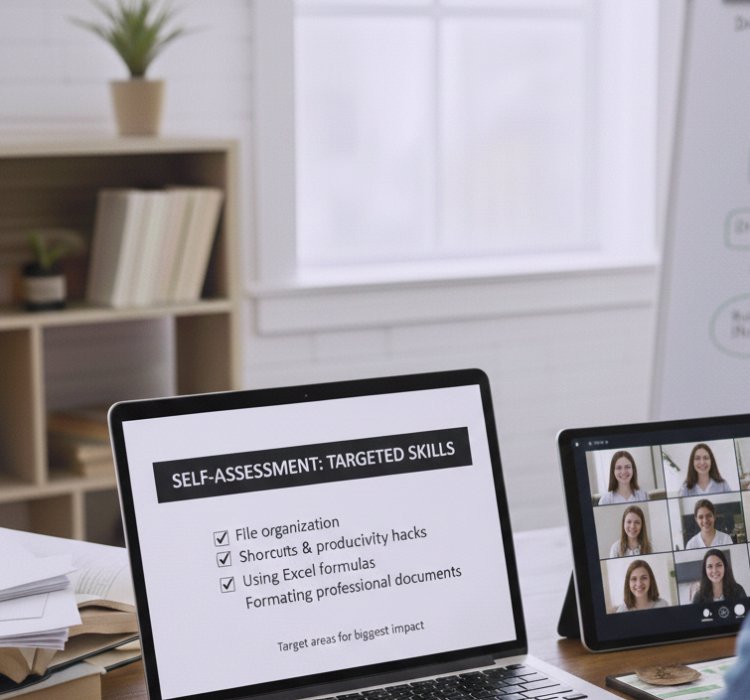
What I struggled with:
• File organization
• Shortcuts and productivity hacks
• Using Excel formulas
• Formatting professional documents
This self assessment helped me target areas that would make the biggest impact on my daily tasks.
Step 2: Start With the Basics
I focused first on the applications I used most frequently:
• Word / Docs: Formatting text, inserting images, tables, headers, footers, and page numbering
• Excel / Sheets: Basic calculations like SUM, AVERAGE, COUNT, sorting, and filtering
• Email Clients (Gmail, Outlook): Formatting emails, creating folders and labels, setting signatures, and filters
I practiced each feature in small, realistic projects rather than just reading tutorials. For example, I created a budget spreadsheet to practice Excel formulas.
Step 3: Learn Shortcuts
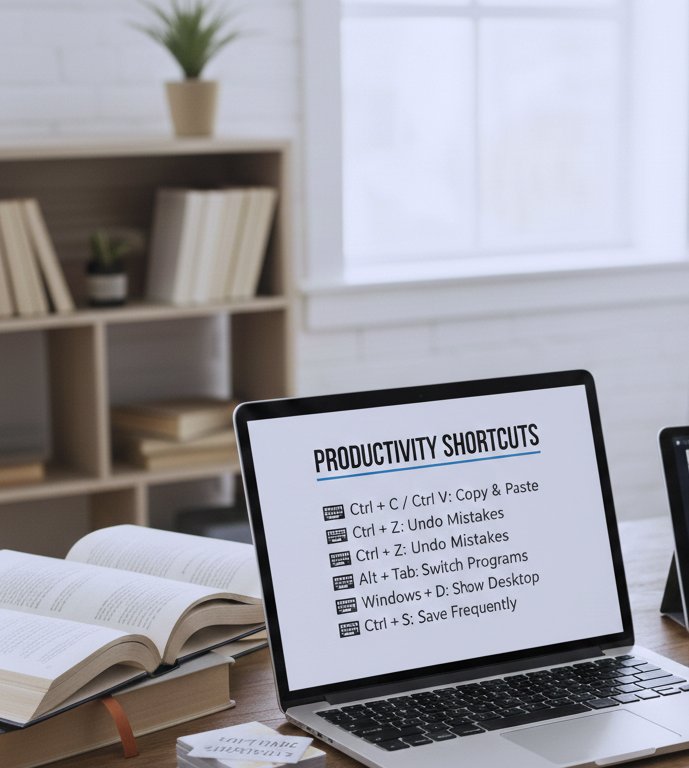
Shortcuts revolutionized my workflow. I created a cheat sheet of the most useful shortcuts:
• Ctrl + C / Ctrl + V: Copy & paste
• Ctrl + Z: Undo mistakes
• Alt + Tab: Switch between programs quickly
• Windows + D: Show desktop
• Ctrl + S: Save frequently
Step 4: Organize Your Files
Before I organized my files, everything was on my desktop. Documents, images, spreadsheets all scattered. I learned to:
• Use descriptive filenames like Budget_January2026.xlsx instead of Document1
• Create folders by category (Work, Finance, Projects)
• Backup important files using cloud storage like Google Drive or OneDrive
This simple habit saved me countless hours and eliminated the frustration of searching for files.
Step 5: Practice Real Life Projects
I didn’t just learn skills in theory. I applied them immediately:
• Presentation Project: Created a PowerPoint for a meeting with visuals and charts
• Budget Tracking: Set up an Excel sheet to track monthly expenses
• Email Management: Organized emails using labels and filters, created templates for recurring emails

Step 6: Explore New Tools Gradually
Once I mastered the basics, I experimented with:
• Canva: For creating visuals for presentations and social media
• Trello / Notion: For project management and note organization
• Google Forms: For surveys and data collection
I recommend learning one new tool at a time. Jumping into multiple tools simultaneously caused overwhelm in my early learning phase.

Step 7: Avoid Common Mistakes
Some mistakes I made early on:
• Trying to learn too many programs at once
• Ignoring practice, relying solely on tutorials
• Forgetting to apply new knowledge immediately
The fix? One skill at a time, immediate application, and regular review.
Tips From My Experience
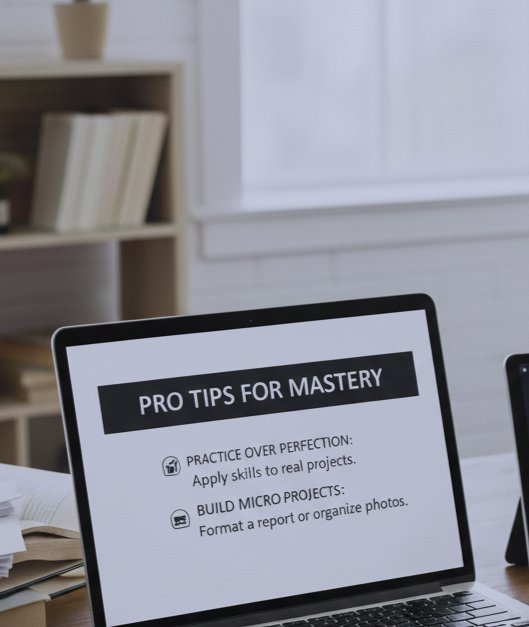
• Focus on practical application, not perfection. It’s better to practice a shortcut repeatedly on real projects than memorize it from a guide.
• Also, create small “micro projects” that force you to use what you’ve learned like formatting a report for school, work, or personal use.
Step 8: Build a Skill Maintenance Routine
I created a weekly schedule to reinforce my skills:
|
Skill Area |
Beginner Tip |
Practice Idea |
Frequency |
|
Typing |
Use online typing tests |
Type emails or personal notes |
Daily |
|
File Organization |
Keep desktop tidy |
Organize new files every day |
Daily |
|
Excel Formulas |
Focus on 1 formula at a time |
Track expenses, simple analysis |
Weekly |
|
Shortcuts |
Learn 3 to 5 shortcuts per week |
Use in emails, documents |
Daily |
|
Email Management |
Set rules for incoming emails |
Apply labels, filters, templates |
Weekly |
This routine helped me retain knowledge and build confidence.
Real Life Feedback
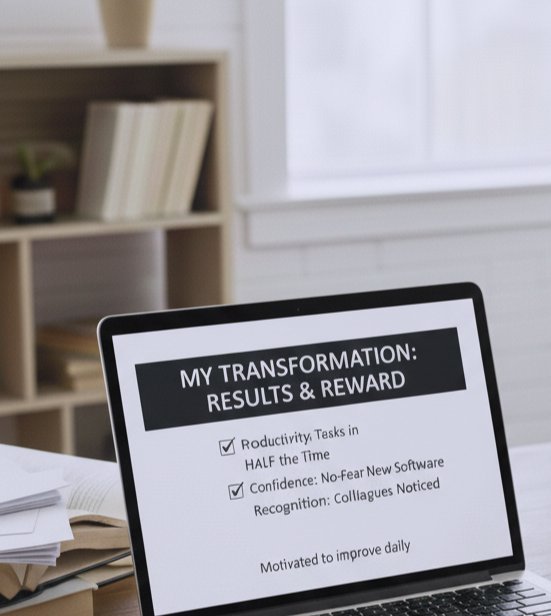
• Productivity: I now complete tasks in half the time it used to take
• Confidence: I can tackle new software without fear
• Recognition: Colleagues and peers noticed my efficiency improvements
These results motivated me to continue improving daily.
What I Got Wrong The First Time
When I first started improving my computer skills, I made the mistake of rushing into advanced programs and tools without fully understanding the basics. I thought I could figure everything out on the fly, skipping essential steps like organizing my files, learning keyboard shortcuts, and practicing simple troubleshooting. This approach backfired I ended up wasting a lot of time and getting frustrated with errors that could have been avoided. Once I went back and focused on mastering the fundamentals first, everything else became smoother. Tasks that once seemed overwhelming started to feel manageable, and I realized that strong basics are the key to growing any skill effectively.

What I’d Tell My Past Self
If I could go back, I’d say:
“Focus on consistent daily practice, not the number of tutorials watched. Apply skills to real life projects, one at a time. Even 30 minutes a day is better than cramming for hours.”
Consistency and application are the keys to long lasting computer skills.
Conclusion
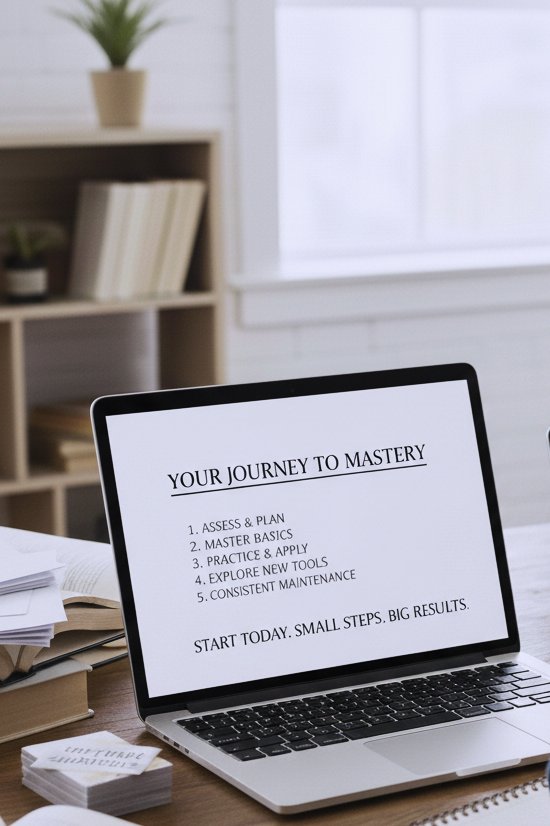
Improving computer skills doesn’t require being a tech genius. It requires consistent practice, real life application, and patience. By following the steps I shared assessing your level, mastering basics, practicing real projects, exploring new tools, and maintaining skills you can become efficient, confident, and organized in daily computer tasks.
Even small improvements compound over time. Start today with one skill and build a habit. You’ll be amazed at how much time, energy, and stress you can save.
FAQs About Improving Computer Skills
1. How long does it take to improve basic computer skills?
From my experience, practicing 30 to 60 minutes daily can lead to noticeable improvements in 2 to 3 months. The key is consistency, not speed.
2. Do I need expensive software to practice?
Not at all. Free tools like Google Docs, Sheets, Gmail, Canva, and free online typing programs are enough for everyday skill building. Paid software may help, but it’s not necessary initially.
3. Are keyboard shortcuts really worth learning?
Absolutely. Shortcuts save hours every week and reduce repetitive strain. I started with just a few (Ctrl+C, Ctrl+V, Ctrl+Z) and gradually added more this made a huge difference.
4. How do I avoid forgetting skills I learn?
Immediate application is crucial. Use new skills in daily projects and review them weekly. Even revisiting old spreadsheets or documents reinforces memory.
5. Should beginners take courses or rely on tutorials?
A combination works best. Courses give structure, while tutorials help with specific problems. Personally, I followed a structured course for Excel, then used YouTube for quick fixes.
6. How can I track my progress effectively?
I maintain a simple checklist of tasks completed and skills practiced. Weekly reflection helps me see improvement and identify areas to focus on next.
7. Can improving computer skills boost my career?
Yes! Employers value efficiency and technical literacy. After I improved my skills, I noticed faster work, fewer mistakes, and more recognition from colleagues.
What's Your Reaction?