How AI Is Changing Digital Workflows
Discover how AI is transforming digital workflows through my hands on experience. Learn practical tips, real life examples, and step by step guidance to optimize your work using AI tools.

Key Points Regarding AI in Workflows
AI can automate repetitive tasks, saving hours of manual effort.
Workflow efficiency increases when AI tools are integrated correctly.
Beginners often make mistakes by over automating or ignoring tool settings.
Understanding AI tool interfaces is critical to practical productivity.
Real life examples show measurable improvements in project management, content creation, and data analysis.
How AI Transformed My Daily Work
When I first started managing digital projects, I constantly felt overwhelmed. Tasks like data organization, content scheduling, and workflow approvals consumed my days. I had heard about AI tools but wasn’t sure how they could help me. After experimenting with several AI solutions, I realized that AI isn’t just a “fancy tool” it can fundamentally change how I work, streamline my processes, and free up hours for creative thinking.
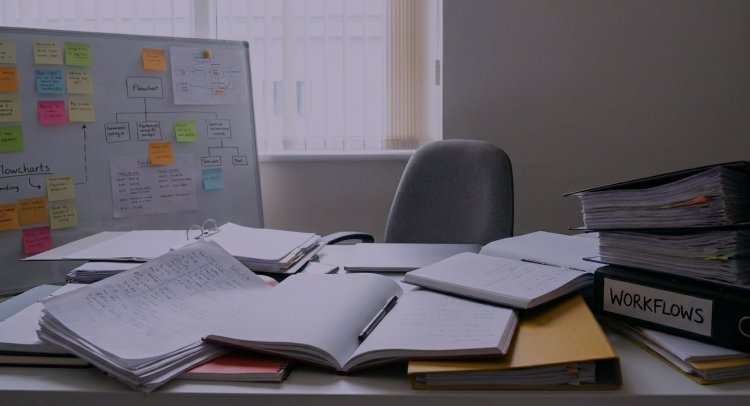
Why AI Workflows Matter
Digital workflows are the backbone of modern productivity. Whether it’s managing a content calendar, automating email responses, or organizing large datasets, every professional deals with repetitive, time consuming tasks. For me, the pain was clear: I spent too much time on repetitive work and too little on creativity or strategy. AI helped me bridge that gap.
When I started using AI tools like Notion AI for project management, Zapier for workflow automation, and ChatGPT for drafting content, I noticed immediate improvements. My tasks became faster, my output more consistent, and my stress levels dropped significantly.

Tools I Used
Here’s a practical list of AI tools I relied on to optimize my workflows:
Notion AI for task planning, notes, and documentation.
Zapier for automating repetitive actions between apps.
Trello + Butler Automation for workflow boards and recurring task automation.
ChatGPT for drafting emails, content outlines, and brainstorming.
Grammarly AI for proofreading and improving written communication.
Google Workspace AI tools for smarter spreadsheet formulas and automated reports.
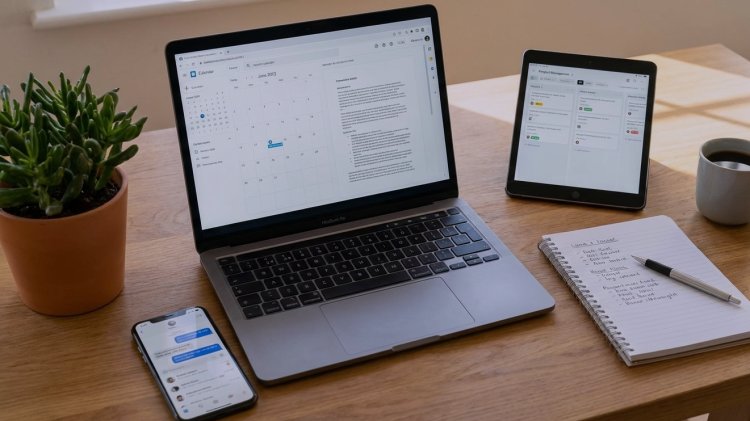
Step by Step Guide: Implementing AI in Your Workflows
Step 1: Identify Repetitive Tasks
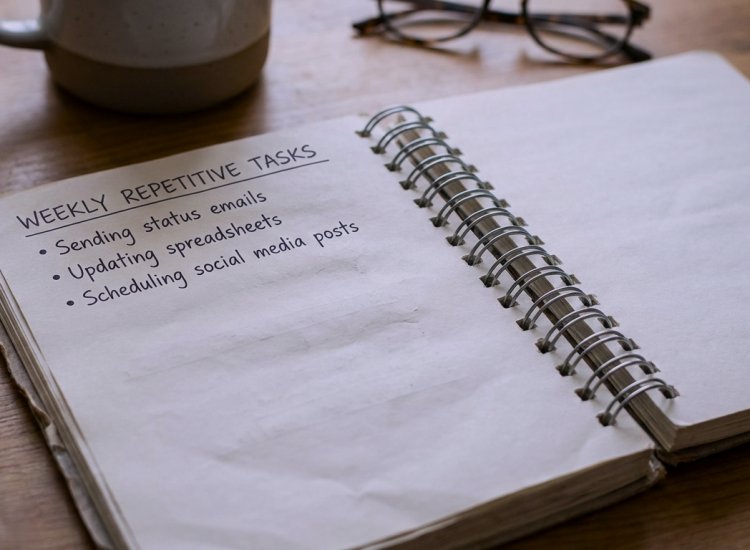
The first step I took was listing all tasks I repeated weekly.
Examples:
Sending status emails
Updating spreadsheets
Scheduling social media posts
Writing them down helped me see patterns where AI could save time.
Step 2: Choose the Right AI Tool
Not all AI tools work for every task. I learned this the hard way.
For instance:
I tried using ChatGPT to schedule tasks directly in Google Calendar it didn’t integrate well.
I switched to Zapier, which allowed me to connect ChatGPT outputs to automated calendar entries.
Pro Tip: Start with one workflow at a time; don’t try to automate everything at once.
Step 3: Start Small and Test
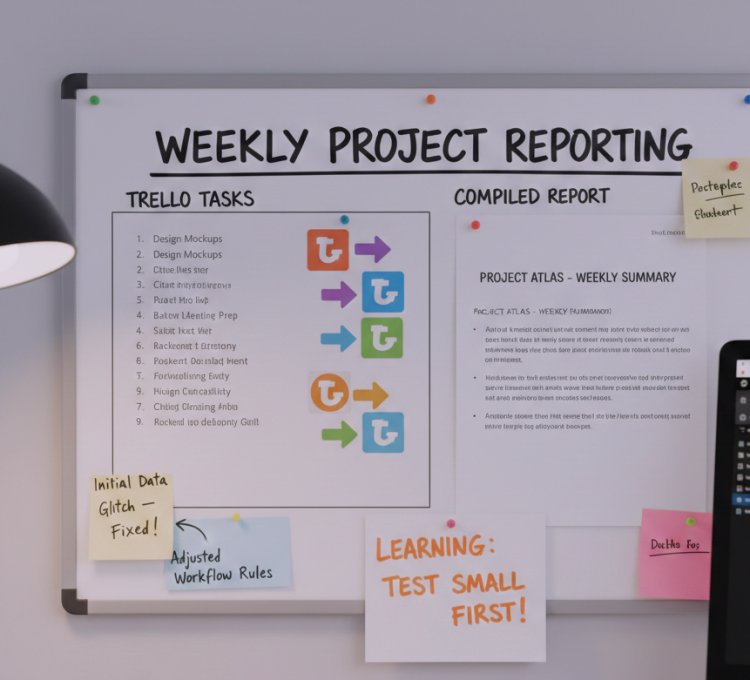
I automated just one process first: weekly project reporting.
I used AI to compile tasks from Trello and generate a concise report.
Initially, the AI misformatted some data, but I adjusted the workflow rules.
This taught me that testing small workflows first avoids bigger mistakes later.
Step 4: Review and Adjust
After implementing automation, I reviewed it for a week:
Was the AI saving time?
Did it miss anything critical?
Were team members comfortable with the changes?
Regular review is key AI isn’t perfect, and your workflow should adapt over time.
Step 5: Expand Gradually
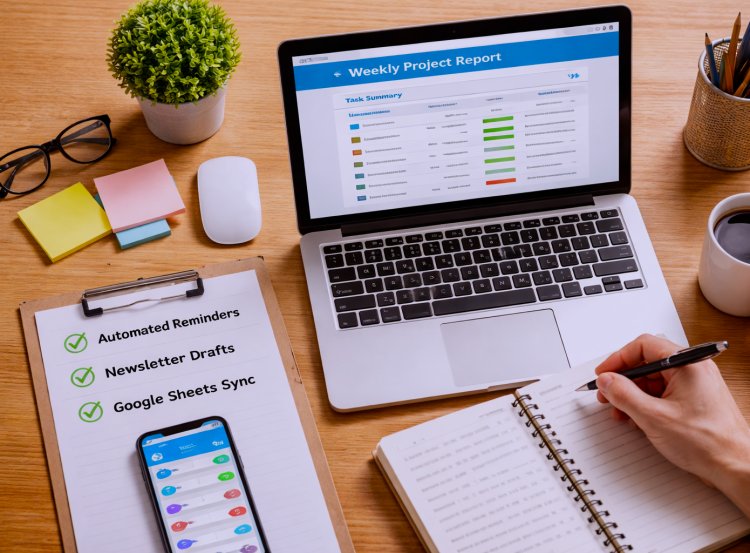
Once my first workflow succeeded, I added:
Automated email reminders for task deadlines
Auto generated content drafts for weekly newsletters
Data syncing between Google Sheets and project management apps
Step by step, AI became integral to my workflow, rather than an experimental tool.
What I Got Wrong the First Time
When I first tried AI automation:
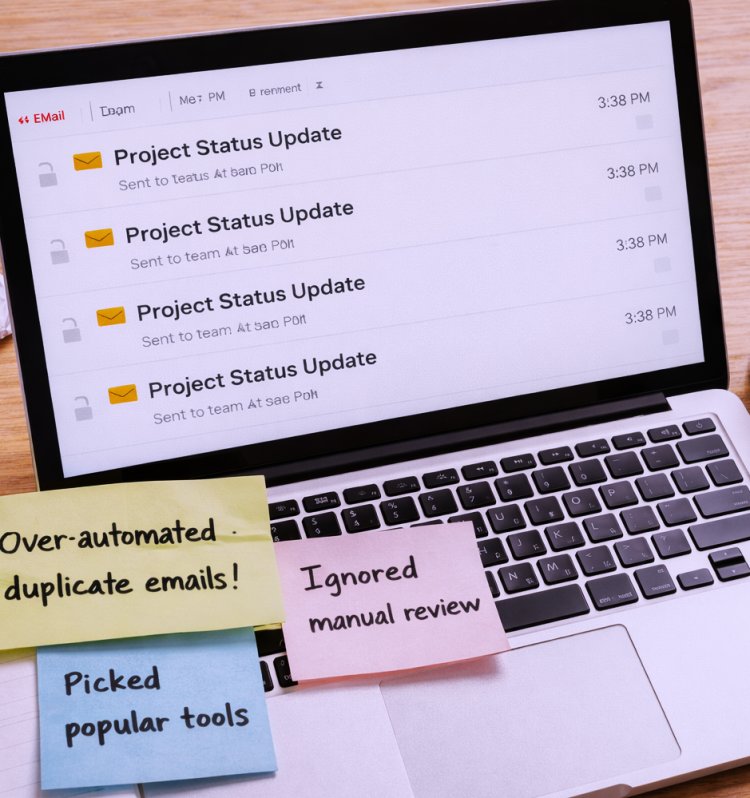
I over automated and ended up with duplicate emails sent to my team.
I ignored manual review, thinking AI output was perfect.
I picked tools based on popularity, not on workflow fit.
How I fixed it:
• I limited AI to non critical tasks at first.
• I added checkpoints for human review.
• I researched integration compatibility before selecting tools.
• Mistakes are part of the learning process, but they are fixable with gradual implementation.
Practical Examples from My Experience
• Project Updates: AI now pulls updates from Trello, formats them in a weekly report, and emails the team automatically. Time saved: 2 hours/week.
• Content Drafting: ChatGPT drafts blog outlines based on input keywords. I only tweak and finalize them, reducing drafting time by 50%.
• Spreadsheet Management: AI generates charts and formulas based on raw data in Google Sheets. This reduced my errors and improved report accuracy.
Tips From My Experience
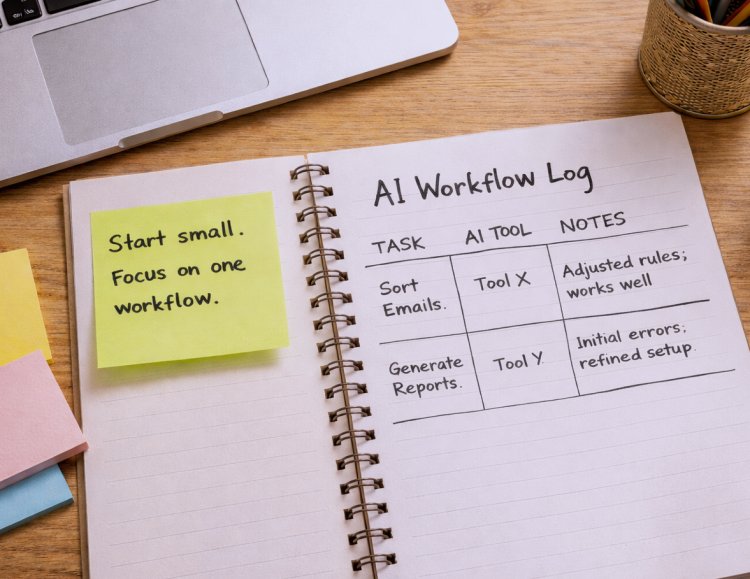
When I first started using AI in my digital workflows, I made the mistake of trying to automate everything at once. It was overwhelming, and I ended up creating more work for myself than I saved. My tip: start small and focus on one workflow at a time. Pick a repetitive task that takes up significant time like sorting emails, generating reports, or scheduling social media posts and automate just that first.
Once you see results and understand how the AI tool handles that task, gradually add more workflows. Also, always review AI outputs in the beginning. Even the best tools make mistakes, and catching them early saves a lot of frustration later.
Care Table
|
Workflow Task |
AI Tool Used |
Review Frequency |
Time Saved |
|
Weekly Project Report |
Trello + Zapier |
Weekly |
2 hours |
|
Content Drafting |
ChatGPT |
Every Draft |
4 hours |
|
Email Reminders |
Zapier |
Weekly |
1 hour |
|
Spreadsheet Analysis |
Google Sheets AI |
Monthly |
3 hours |
What I’d Tell My Past Self
If I could go back, I would tell myself:
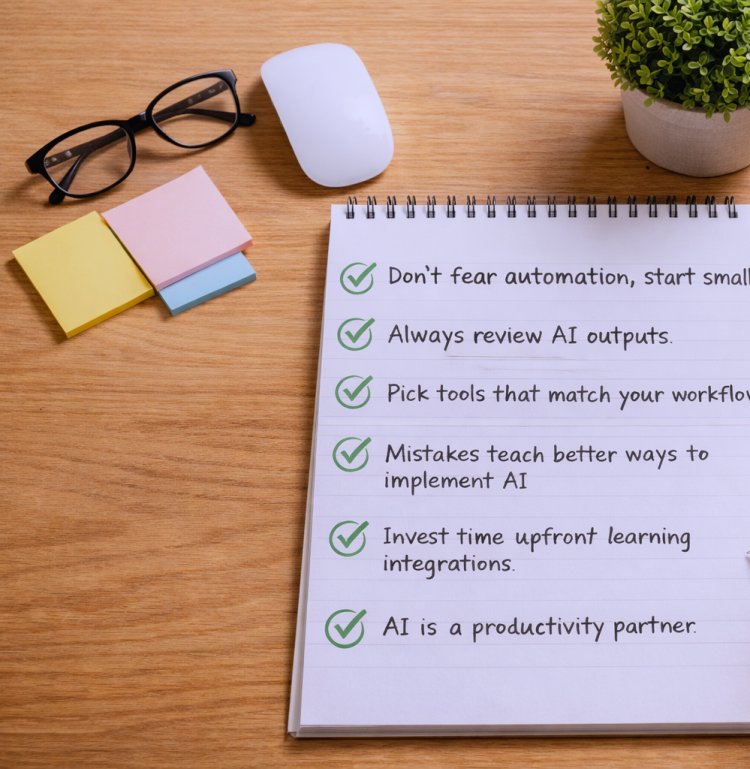
• Don’t fear automation start small.
• Always review AI outputs.
• Pick tools that match your workflow, not just popular options.
• Mistakes will happen, but each teaches a better way to implement AI.
• Invest time upfront in learning tool integrations; it pays off massively later.
• AI is not a replacement for human thinking, but a productivity partner when used wisely.
FAQs About AI in Digital Workflows
1. Do I need technical skills to use AI tools in workflows?
Not at all. Most modern AI tools are designed for beginners. You don’t need coding knowledge to automate tasks like generating reports, scheduling emails, or creating content. A bit of patience and curiosity is enough to start.
2. Can AI completely replace human work?
No. AI is great at handling repetitive, structured tasks, but it cannot replicate creativity, strategic decision making, or emotional intelligence. Your input is essential to guide AI and review outputs.
3. How do I choose the right AI tool for my workflow?
Start by listing your repetitive tasks. Then look for AI tools that specialize in those areas. Check for integrations, pricing, user reviews, and trial versions. Always match the tool to your workflow needs rather than going for popularity.
4. How often should I monitor AI generated outputs?
When you first implement AI, review every output to catch errors and adjust workflows. Once the system stabilizes, weekly or monthly checks are usually enough to ensure consistency.
5. Will using AI improve my productivity?
Yes. By automating routine tasks, AI frees up your time for creative or strategic work. Many of my workflows now run automatically, saving me hours every week.
6. What’s the most common mistake beginners make with AI workflows?
Over automation. Many start automating too many tasks at once without testing. This can lead to duplicated work, missed steps, or errors. Start small, test each workflow, and expand gradually.
7. Are AI tools expensive?
Not always. Some AI tools offer free tiers or trial periods. Paid plans usually provide advanced automation, integration options, or higher processing limits. I started with free versions and upgraded only when I needed extra features.
8. Can AI help with team collaboration?
Absolutely. AI can generate reports, track tasks, send reminders, and summarize project updates. This improves communication and ensures everyone stays on the same page.
What's Your Reaction?