AI Time Management Scheduling That Actually Works
Learn how AI time management works in 2026 with adaptive scheduling, focus time protection, and real world tools like Motion and Reclaim.ai.

Key Highlights Regarding AI Time Management in 2026
• The Shift to "Adaptive" Scheduling: Static to do lists are dead. 2026 is about dynamic rescheduling, where AI automatically shifts your tasks based on new meetings, missed deadlines, or energy levels.
• Focus Time Defense: Leading tools like Motion and Reclaim.ai now treat "Focus Time" as a non negotiable meeting, automatically blocking out hours for deep work before your calendar fills up with low value syncs.
• Habit Integration: AI doesn't just manage work; it protects your life. It can intelligently "slot in" habits like 30 minutes of exercise or a lunch break, moving them around your day to ensure they actually happen.
• Context Aware Capacity: The latest systems analyze your historical velocity how long you actually take to write a report vs. how long you said it would take to prevent over scheduling.
• Multi Calendar Syncing: Modern AI time management effectively acts as a bridge between your personal (Google), professional (Outlook), and side hustle calendars, preventing double booking across different life silos.
My Journey: From "Calendar Chaos" to Automated Freedom
I used to be the person with three different calendars, a physical planner, and a brain that felt like a browser with 50 tabs open. I spent at least 45 minutes every Sunday night manually "time blocking" my week, only for a single emergency client call on Monday morning to wreck the entire plan. By Tuesday, I was usually back to "reactive mode," ignoring my schedule and just doing whatever was screaming loudest in my inbox.
The "pain" was real: I was working 60 hour weeks but felt like I was accomplishing nothing. My deep work was being eaten alive by 15 minute "quick syncs." I realized that I wasn't the problem my static tools were. I was trying to manage a fluid, chaotic life with a rigid, paper logic system.
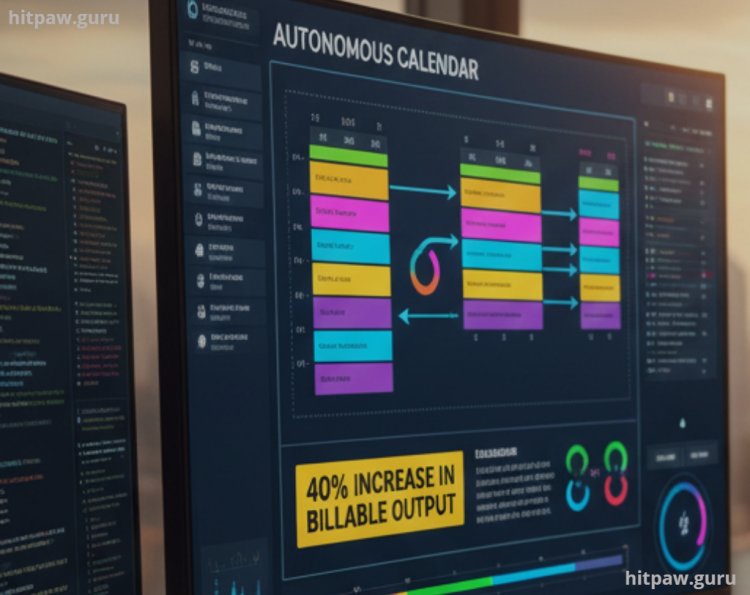
I decided to run an experiment: I would treat my time like a production line and hire an AI Scheduling Engine to be my manager. I spent two weeks setting up an "Autonomous Calendar" project. Not only did I stop working weekends, but my billable output increased by 40% because I finally stayed in "the zone." Here is the blueprint of exactly how I built it.
Materials for Your AI Time System
To build a schedule that breathes and adapts, you need specific "digital materials." Here is the stack I used for my project:
• The Scheduling Engine: Motion (I chose this because it treats tasks as "movable blocks" rather than fixed events).
• The Habit Guardian: Reclaim.ai (I use this specifically for its "Habits" feature, which defends my 1:00 PM lunch break like a hawk).
• The Meeting Gatekeeper: Calendly with AI Routing (To ensure external meetings only happen on my "shallow work" Tuesdays and Thursdays).
• The Context Provider: Google Calendar (The "Foundation" where all my personal and work data lives).
• The Capture Tool: Todoist (For "Quick Adding" tasks on the go, which then sync directly into the AI engine).
Step by Step Guide: How I Automated My Work Week
Step 1: The "Digital Inventory" Cleanse
I started by connecting every calendar I owned to Motion.
• The Action: I imported my work Outlook, my personal Gmail, and my "Side Project" calendar.
• The Result: For the first time, the AI could see that I couldn't do a 4:00 PM meeting because I had a dentist appointment on my personal calendar.
Step 2: Defining "Work Spaces" and Capacity
I didn't just tell the AI I worked 9 to 5. I gave it Hard Constraints.
1. Focus Hours: 9:00 AM to 12:00 PM (No meetings allowed, tasks only).
2. Collaboration Hours: 1:00 PM to 4:00 PM (Meetings preferred).
3. Buffer Time: I set a mandatory 15 minute gap between every meeting so I could actually stand up and stretch.
Step 3: Setting "Task Physics"
In Motion, I added my project tasks with specific parameters. This is where the magic happens.
• Title: "Write Q1 Strategy Report"
• Duration: 3 hours
• Deadline: Friday at 5:00 PM
• Priority: "High"
The AI then looked at my existing meetings and "slotted" that 3 hour block into my Wednesday morning focus time automatically.
Step 4: Activating "Auto Reschedule"
The final step was the most psychological. I had to learn to trust the system. When a new client call was booked for Wednesday at 10:00 AM, I didn't panic. I watched the AI "ripple" my schedule it moved the "Strategy Report" to Thursday morning because it knew I still had time before the deadline.
What I Got Wrong the First Time
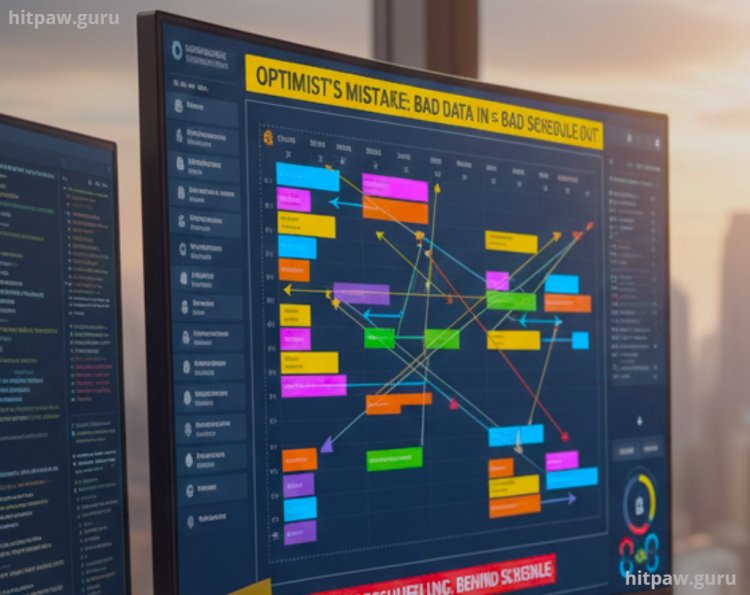
When I first started, I made the "Optimist's Mistake." I told the AI that writing a 2,000 word blog post took me exactly 60 minutes.
The Failure: In reality, with research and formatting, it takes me closer to 2.5 hours. Because I gave the AI the wrong "materials" (bad data), it packed my day so tightly that I had no time to breathe. I was constantly "behind," and the AI was constantly "reshuffling," which created a visual chaos on my screen that stressed me out even more.
The Fix: I learned about "Padding Your Estimates." Now, I take whatever time I think a task will take and multiply it by 1.5. I also started using the AI Analytics in Reclaim to see my "Actual vs. Estimated" time. I learned that the best digital skill isn't being fast it's being accurate. Once the AI had real data, the schedule became a source of peace, not pressure.
Final Advice: You are the Pilot, Not the Passenger
The most important thing I learned is that AI is an Executive Assistant, not a God. If the AI schedules a creative task for 4:30 PM on a Friday and you know your brain is "fried" by then, manually move it. The goal of AI time management isn't to follow a machine's orders; it's to remove the "cognitive load" of deciding what to do next. When you look at your calendar and see a plan already built for you, it frees up all that mental energy to actually do the work. Don't just use the tools curate them.
Frequently Asked Questions
1. Is Motion or Reclaim better for a solo freelancer?
If you want a full project management system that replaces your to do list, go with Motion. If you already love your current to do list (like Todoist or Asana) and just want your calendar to be "smarter" at protecting your time, Reclaim.ai is the better, more affordable choice.
2. Does giving an AI access to my calendar compromise my privacy?
In 2026, you should look for tools with SOC 2 Type II compliance. Most major tools allow you to "mask" meeting titles (so it just says "Busy" to the AI) while still allowing the engine to schedule around the time block. Always check the "Data Privacy" toggle in settings.
3. What if my team doesn't use AI tools?
You can still use these tools "locally." When someone invites you to a meeting through Outlook, your AI (Motion/Reclaim) will see it and move your internal tasks accordingly. You don't need the whole company to buy in for you to be 50% more productive.
4. How does AI handle "Deep Work" vs "Shallow Work"?
You have to tag them. In my experience, I tag "Writing" and "Strategy" as Deep Work, which tells the AI to never schedule them in blocks smaller than 90 minutes. I tag "Email" and "Admin" as Shallow Work, which the AI can break into 15 minute chunks to fill small gaps.
5. Can AI help with my ADHD and "Time Blindness"?
Yes, this is one of the biggest use cases. AI tools like Saner.AI are specifically designed for this, breaking large tasks into "bite sized" steps automatically. For someone with time blindness, having a calendar that "shouts" at you when you’re drifting is a life changer.
What's Your Reaction?