How Automation Is Shaping Creative Industries
Discover how automation is reshaping creative industries through real world experience. Learn the tools, workflows, mistakes, and step by step methods I used to save time, reduce stress, and focus on creativity.

Key Points Regarding Automation in Creative Industries
How automation is changing creative workflows and boosting productivity
Tools, software, and scripts I personally use to save time
Real life lessons from my trial and error process
Step by step guidance on integrating automation safely
Mistakes I made and how I corrected them
FAQs about automation in creative fields
Why I Started Using Automation in My Creative Work
I used to spend countless hours on tasks that were repetitive, mind numbing, and, frankly, soul draining. From resizing hundreds of images for social media posts to manually organizing folders for each project, I realized my creativity was suffering because I was stuck in “task mode” rather than “creative mode.”
When I discovered automation tools for creative workflows, I experienced a profound shift. Suddenly, I could automate tedious work while focusing my energy on designing, storytelling, and conceptual thinking. In this guide, I’ll take you through my personal journey, the tools I used, the mistakes I made, and the practical steps I took to make automation an essential part of my creative workflow.
Understanding Automation in Creative Industries: My Perspective
For me, automation isn’t just about efficiency it’s about freedom. In creative work, mental energy is your most valuable resource. Tasks like batch editing images, generating reports, scheduling content, and file management, while necessary, do not require creative thinking. These are exactly the tasks automation can handle.
Some examples from my workflow:
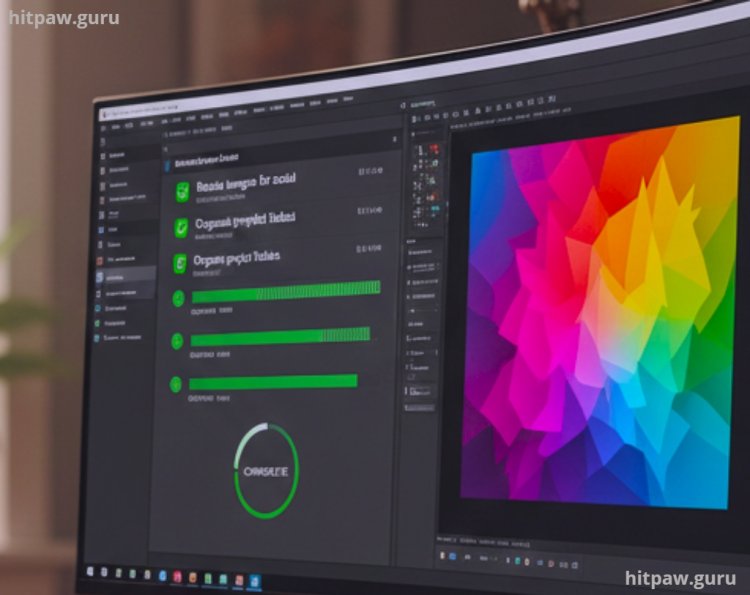
· Image Editing: Using Photoshop Actions, I can batch resize or apply effects to hundreds of images.
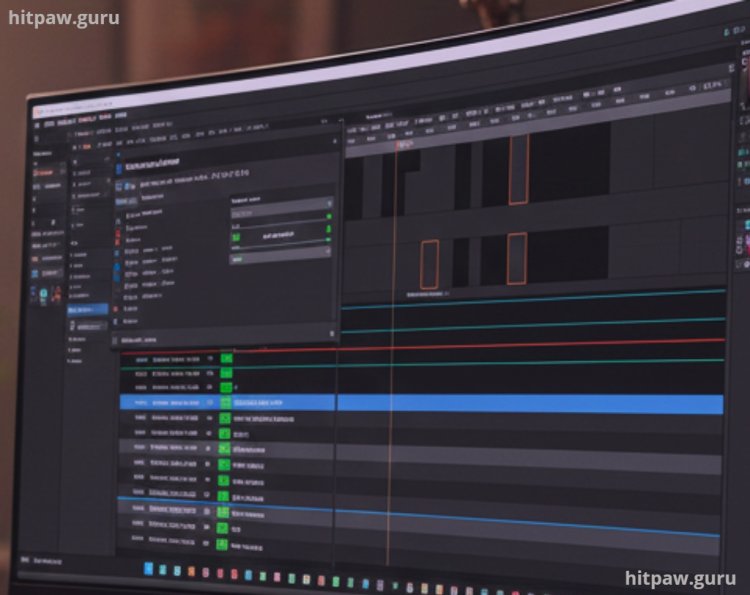
· Video Editing: With Adobe Premiere Pro scripts, I can automatically add intros and outros to video batches.
· File Management: Automated cloud backups prevent accidental loss of project files.
· Content Scheduling: Zapier and IFTTT allow me to automatically post content to multiple platforms.
By automating these tasks, I freed over 10 hours per week, which I redirected toward brainstorming, learning new design techniques, and creating higher value projects.
Tools I Use for Automation
I learned early on that the right tools make all the difference. Here’s a detailed breakdown of what I used:
1. Zapier Automates online tasks, like moving files, scheduling posts, and syncing data between apps.
2. IFTTT (If This Then That) Connects apps and devices with simple “if this, then that” logic.
3. Adobe Creative Cloud Automation Photoshop Actions, Illustrator Scripts, and Premiere Pro extensions.
4. Google Workspace Scripts Automates spreadsheets, email reports, and cloud storage organization.
5. Trello + Automation Power Ups Tracks projects and automatically moves tasks through workflow stages.
6. Canva Pro Automation Templates and batch resizing for social media graphics.
7. Keyboard Maestro / AutoHotkey Automates repetitive keyboard and mouse tasks on Mac and Windows.
Step by Step Guide: How I Integrated Automation
Step 1: Identify Repetitive Tasks
The first step was observing my workflow for a week. I listed tasks that:
· I performed multiple times per week
· Consumed a lot of time
· Did not require critical thinking or creativity
Example tasks: resizing images, exporting PDFs, renaming files, posting to social media, generating reports.
Step 2: Select the Right Tool
Not all tasks are equal. I matched tools to tasks carefully:
· Batch editing images > Photoshop Actions
· Content scheduling > Zapier + social media tools
· File backups > Google Scripts
· Video workflow > Premiere Pro scripts
Step 3: Start Small
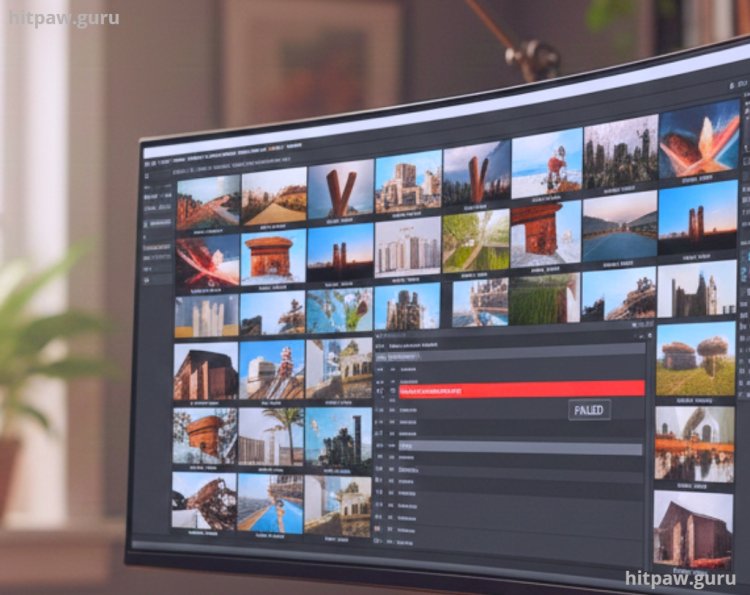
I automated only one task at first batch resizing images for social media. My first attempt failed because I didn’t double check the output settings. The lesson: always test automation on small batches.
Step 4: Monitor Results and Adjust
After testing, I tracked time saved, errors, and quality. Within a month, I saved over 10 hours per week, and my workflow felt smoother.
Step 5: Gradually Expand Automation
Once small tasks worked, I automated bigger processes: content creation > approval > scheduling > reporting. Using Trello and Zapier together made this possible.
What I Got Wrong the First Time
I over automated early. I created a workflow that moved files from multiple folders into one main folder automatically. Result: files got lost, and I spent hours correcting mistakes.
Lesson learned: automation needs careful planning and stepwise implementation. Always test small, and don’t automate every possible task. Focus on high volume, low risk repetitive tasks.
Practical Examples From My Work
Image Editing Automation:
I used Photoshop Actions to batch apply color correction, add watermarks, and resize images for multiple platforms. Initially, I didn’t adjust DPI settings, which caused blurry images. After tweaking, I achieved consistent, high quality output across platforms.
Video Editing Automation:
Premiere Pro scripts allowed me to batch add intros/outros and lower thirds. I combined it with After Effects templates to streamline client video projects.
Social Media Scheduling:
Zapier connected my Trello board to social platforms. When a project moved to “Ready,” it automatically queued posts on Instagram, Twitter, and LinkedIn.
Cloud Backup Automation:
Google Scripts automatically backed up my folders nightly. Once, I caught a corrupted file before it became a problem automation saved me hours of data recovery.
Tips From My Experience
When I first started using automation in my creative workflow, I made the mistake of trying to automate everything at once. My tip: start small. Focus on one repetitive task like batch image resizing or auto formatting video clips and master it. Once it runs smoothly, gradually add more automation. This keeps your workflow flexible, prevents errors, and actually saves more time than overloading your process.
Wrapping It Up (Naturally, No Fluff)
Automation transformed my workflow from tedious and draining to efficient and focused. By automating repetitive tasks like file management, image editing, and content scheduling, I reclaimed hours of time each week. I also minimized errors and could focus on truly creative work.
The key is: start small, test thoroughly, and expand gradually. Combine the right tools with careful planning, and automation becomes a silent partner in your creative process freeing you to focus on what really matters: creating, designing, and innovating.
FAQs About Automation in Creative Industries
1. What does automation in creative industries mean?
Automation in creative industries involves using software tools, AI, and workflows to perform repetitive or time consuming tasks like video editing, image processing, or content scheduling so creatives can focus more on strategy and innovation.
2. Will automation replace creative jobs?
Not entirely. Automation handles repetitive or technical work, but human creativity, storytelling, and decision making remain essential. Think of automation as a tool to enhance productivity, not replace people.
3. What are common tools used for automation?
Some popular tools include Adobe Sensei for image and video tasks, AI powered content generators, script automation tools for motion graphics, and project management platforms like Asana or Monday.com with automated workflows.
4. How can beginners start using automation?
Start small. Identify repetitive tasks in your workflow, explore basic automation tools like templates, macros, or AI assistants, and gradually expand as you gain confidence. Learning by doing is the most effective approach.
5. Are there risks in relying on automation?
Yes. Over automation can reduce originality, introduce errors if not properly monitored, or make workflows rigid. Always combine automation with human oversight and creativity.
6. What skills complement automation in creative industries?
Skills like project management, creative strategy, basic coding or scripting, and AI tool proficiency help you maximize automation benefits while staying flexible and innovative.
What's Your Reaction?